
Commands
Overview
Section titled “Overview”Front Matter actions can also be done using commands. This section of the documentation will provide an explanation of all the available commands.
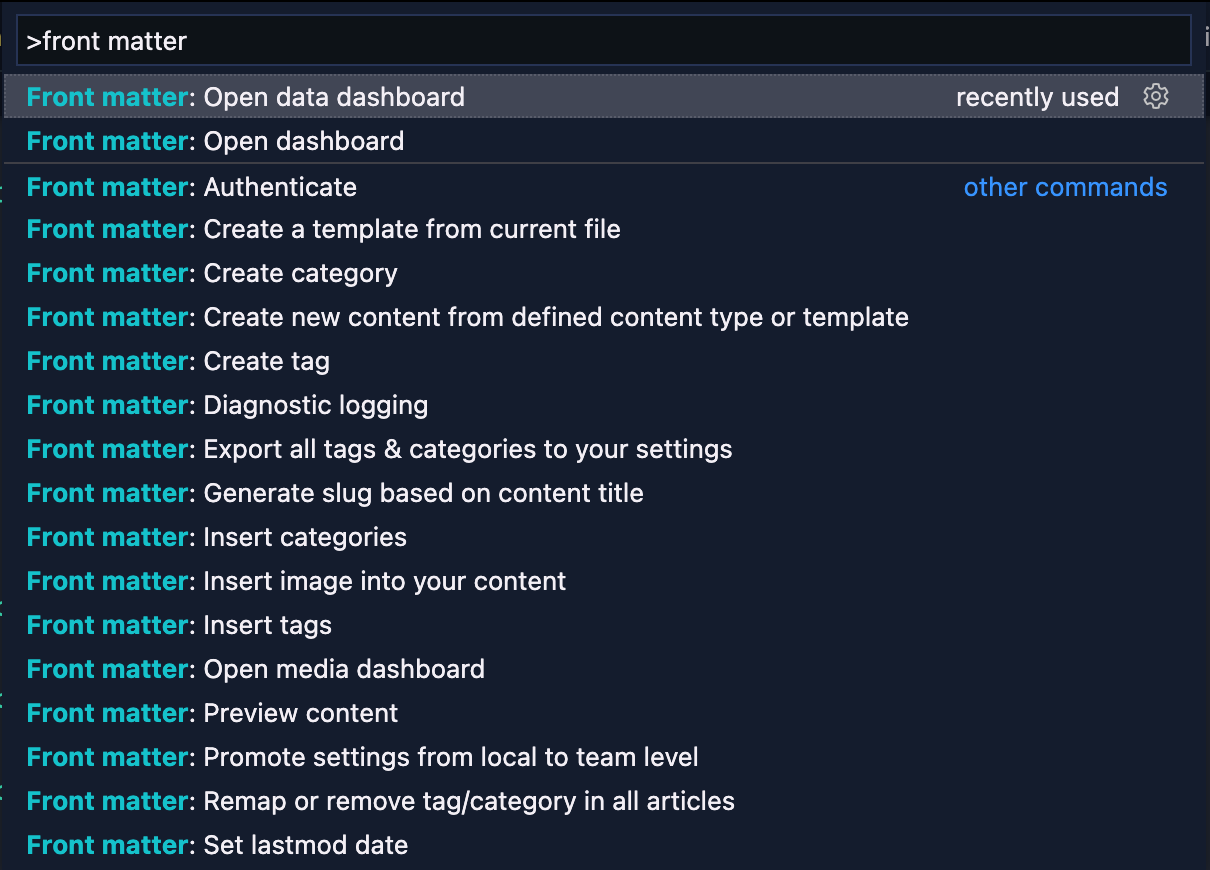
Some of the commands do also have a default keyboard binding for quick access.
Keyboard bindings
Section titled “Keyboard bindings”| Command | Description | Windows | Mac | Linux |
|---|---|---|---|---|
frontMatter.dashboard | Open the Front Matter dashboard | alt + d | option + d | alt + d |
frontMatter.insertMedia | Insert a media file into your content | ctrl + shift + i | cmd + shift + i | ctrl + shift + i |
frontMatter.insertSnippet | Insert a snippet into your content | cmd + shift + v | cmd + shift + v | cmd + shift + v |
Using commands
Section titled “Using commands”- Start by opening the command prompt:
- Linux & Windows: shift + ctrl + P
- Mac: shift + cmd + P
- Use one of the following commands
Useful commands
Section titled “Useful commands”Initialize project
Section titled “Initialize project”This command will initialize the project with a template folder and an article template. It makes it easier to get you started with the extension and creating your content.
ID: frontMatter.init
Open dashboard
Section titled “Open dashboard”Opens the dashboard with your Markdown pages overview. If you did not yet initialize your project, the welcome screen will be shown.
ID: frontMatter.dashboard
Open media dashboard
Section titled “Open media dashboard”Opens the media dashboard with all your media files.
ID: frontMatter.dashboard.media
Open snippet dashboard
Section titled “Open snippet dashboard”Opens the snippet dashboard with all your snippets.
ID: frontMatter.dashboard.snippets
Open data dashboard
Section titled “Open data dashboard”Opens the data dashboard with all your data files.
ID: frontMatter.dashboard.data
Open taxonomy dashboard
Section titled “Open taxonomy dashboard”Opens the taxonomy dashboard with all your categories and tags.
ID: frontMatter.dashboard.taxonomy
Insert media into your content
Section titled “Insert media into your content”Allows you to quickly insert an media reference in the Markdown file.
ID: frontMatter.insertMedia
Insert snippet into your content
Section titled “Insert snippet into your content”Allows you to quickly insert a snippet in the Markdown file.
ID: frontMatter.insertSnippet
Create new content
Section titled “Create new content”With this command, you can easily create content in your project from the defined content types.
ID: frontMatter.createContent
Create new translation
Section titled “Create new translation”This command allows you to create a new translation for the current content if the multilingual feature is enabled.
Info
More information about the multilingual feature can be found in the multilingual documentation.
ID: frontMatter.i18n.create
Generate slug based on content title
Section titled “Generate slug based on content title”This command generates a clean slug for your content. It removes known stop words, punctuations, and special characters.
Info
You can read more about the slug in the slug documentation.
ID: frontMatter.generateSlug
Set lastmod date
Section titled “Set lastmod date”Sets/updates the current modified date in your Markdown file.
ID: frontMatter.setLastModifiedDate
Preview content
Section titled “Preview content”Open the site preview of your content in VS Code.
ID: frontMatter.preview
Refresh the settings
Section titled “Refresh the settings”This command allows you to refresh the settings from the frontmatter.json file. This is useful
when you have updated the settings manually and want to reload them.
ID: frontMatter.settings.refresh
Clear cache
Section titled “Clear cache”Clears the CMS cache, this removes all processed pages and data from the cache so that the whole cache can be rebuilt.
ID: frontMatter.cache.clear
Diagnostic logging
Section titled “Diagnostic logging”Opens a virtual Markdown document with detailed information about your Front Matter configuration.
ID: frontMatter.diagnostics