
Fields
Supported field types
Section titled “Supported field types”Front Matter supports the following fields to be used in the content-types:
- string
- number
- datetime
- boolean
- image
- file
- choice
- list
- draft
- tags
- categories
- taxonomy
- fields
- fieldCollection
- block
- dataFile
- slug
- contentRelationship
- customField
There are also the following section fields:
Standard field properties
Section titled “Standard field properties”All fields share the following field properties:
| Property | Type | Description | Optional / Required |
|---|---|---|---|
name | string | The name of your field, will be used to set in the front matter of your Markdown file. | Required |
type | string | The type of the field. Use one of the supported field types. | Required |
title | string | The title to show in the metadata section | Optional |
description | string | The description to show underneath the field | Optional |
default | string | Defines the default value for the field when creating the content type. You can also use placeholders like {{title}}, {{slug}} or {{now}}. Check for more information under placeholders. | Optional |
required | boolean | Defines if the field is required or not. If set to true, and the user does not define a value, a notification will appear. You can disable this notification with the frontMatter.global.disabledNotifications setting. | Optional |
hidden | boolean | Specifies if you want to hide the field from the metadata section, but still have it available in Front Matter. | Optional |
actions | object | Defines the custom actions/scripts that you can execute to populate the field value | Optional |
translate | boolean | Defines if the field value needs to be machine translated when creating a translation of your content. Check for more information under automatic language translation. | Optional |
String
Section titled “String”The string field type is used to store a single-line or multiline of text. For instance, you can
use if for the title, description, or any other text field.
Properties
Section titled “Properties”| Property | Type | Description | Required | Default |
|---|---|---|---|---|
single | boolean | When set to true, the field will be rendered as a single line. | Optional | false |
wysiwyg | boolean, html or markdown | When set to true, the field will be rendered as a WYSIWYG editor and output HTML. You can also provide html or markdown its value to define the field’s output. | Optional | false |
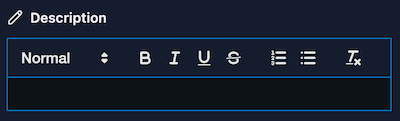
{ "title": "Title", "name": "title", "type": "string", "single": true}---title: "My title"---Number
Section titled “Number”The number field allows you to insert integer values, like for instance setting the weight of your
content.
Properties
Section titled “Properties”To configure the number field, you can specify the following properties in the numberOptions
field property:
| Property | Type | Description | Required | Default |
|---|---|---|---|---|
min | number | The minimum value for the field. | Optional | |
max | number | The maximum value for the field. | Optional | |
step | number | The step value for the field. | Optional | |
isDecimal | boolean | When set to true, the field will allow decimal/floating values. | Optional | false |
Example 1
Section titled “Example 1”{ "title": "Weight", "name": "weight", "type": "number"}---weight: 1---Example 2
Section titled “Example 2”{ "title": "Weight", "name": "weight", "type": "number", "numberOptions": { "min": 1, "max": 10, "step": 1 }}---weight: 1---Example 3
Section titled “Example 3”{ "title": "Weight", "name": "weight", "type": "number", "numberOptions": { "isDecimal": true }}---weight: 1.5---Datetime
Section titled “Datetime”The datetime field allows you to add date fields. You can use it for publish, modified, and any
other types of dates for you content.
Properties
Section titled “Properties”| Property | Type | Description | Required | Default |
|---|---|---|---|---|
isPublishDate | boolean | Specifies if the field is a publish date. When set to true, the field will be used to set the publish date for the content (this will be reflected on the content dashboard). | Optional | false |
isModifiedDate | boolean | Specifies if the field is a modified date. When using the frontMatter.content.autoUpdateDate setting to automatically update the modified date of the article, this field will be used. | Optional | false |
dateFormat | string | Specifies the format of the date. By default it uses ISO format. | Optional |
Info
The format of your date can be defined in the
frontMatter.taxonomy.dateFormatsetting (globally), or with thedateFormaton the field level. To format the date, use the date-fns formating for more information.
{ "title": "Publishing date", "name": "date", "type": "datetime", "isPublishDate": true},{ "title": "Last modified date", "name": "lastmod", "type": "datetime", "isModifiedDate": true},{ "title": "Date formatting", "name": "dateWithFormat", "type": "datetime", "default": "{{now}}", "dateFormat": "yy-MM-dd"}---date: 2022-03-14T08:42:21.626Zlastmod: 2022-03-14T08:42:22.364ZdateWithFormat: 23-07-16---Boolean
Section titled “Boolean”The boolean field can be used to set a value of true or false into your markdown. It will be
rendered as a toggle.
{ "title": "Published", "name": "isPublished", "type": "boolean"}---isPublished: true---Choice
Section titled “Choice”The choice field allows you to define a set of options.
Properties
Section titled “Properties”| Property | Type | Description | Required | Default |
|---|---|---|---|---|
choices | string[] or { id: string; title: string; }[] | Define the choices for the field. | Required | |
multiple | boolean | Define if you want to allow multiple choice selection. | Optional | false |
searchable | boolean | Show a searchable input instead of a dropdown. Typing filters the choices on their title and ID. Useful when you have many choices. | Optional | false |
Example 1
Section titled “Example 1”{ "title": "Choice", "name": "choice", "type": "choice", "choices": ["", "Choice 1", "Choice 2", "Choice 3"]}---choice: "Choice 1"---Example 2
Section titled “Example 2”{ "title": "Choice", "name": "choice", "type": "choice", "choices": [ { "id": "1", "title": "Choice 1" }, { "id": "2", "title": "Choice 2" }, { "id": "3", "title": "Choice 3" } ]}---choice: "1"---Example 3
Section titled “Example 3”When your field has a long list of choices, set the searchable property to true. Instead of a
dropdown, the field shows an input in which you can type to filter the choices on their title or ID.
{ "title": "Country", "name": "country", "type": "choice", "searchable": true, "choices": [ { "id": "be", "title": "Belgium" }, { "id": "nl", "title": "Netherlands" }, { "id": "fr", "title": "France" }, { "id": "de", "title": "Germany" } ]}---country: "be"---The list field allows you to add multiple text values.
{ "title": "Alias", "name": "alias", "type": "list"}---alias: - release-notes-v8 - changelog-v8---The draft field defines the state of your content. This is used for the content dashboard as well.
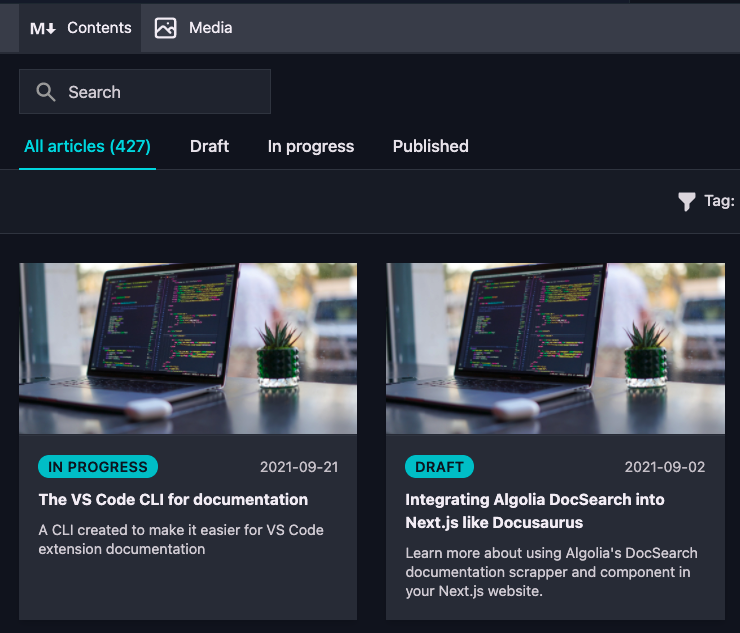
By default, the draft field is a boolean. If you want to use your own status values, you can
configure it via the frontmatter.content.draftfield setting.
When using a custom draft status, the content dashboard will make use of it as well:
Important
If you use Jekyll, you do not have to use the draft field, as Front Matter supports the
_drafts,_postsfolders and collections from Jekyll. If you use Jekyll, make sure to set thefrontMatter.framework.idsetting tojekyll.
Example 1
Section titled “Example 1”{ "title": "Draft", "name": "draft", "type": "draft"}---draft: true---Example 2
Section titled “Example 2”In case you want to use a published field, instead of a draft field. You can invert the logic by
setting the invert property to true:
"frontMatter.content.draftField": { "name": "published", "type": "boolean", "invert": true}{ "title": "Published", "name": "published", "type": "draft"}---published: false---Example 3
Section titled “Example 3”If you want to use your own status values, you can define it by specifying these in the
frontMatter.content.draftField setting:
"frontMatter.content.draftField": { "name": "draft", "type": "choice", "choices": ["draft", "in progress", "published"]}{ "title": "Draft", "name": "draft", "type": "draft"}---draft: "in progress"---The image field can be used to reference single or multiple images to your content.
Properties
Section titled “Properties”| Property | Type | Description | Required | Default |
|---|---|---|---|---|
isPreviewImage | boolean | Allows you to specify a custom preview image for your article. When you set this to true for an image field in your content type, it will be adopted in the dashboard. | Optional | false |
multiple | boolean | Define if you want to allow to select multiple images. | Optional | false |
Important
You can only set this on one image field per content type.
{ "title": "Article preview", "name": "preview", "type": "image", "isPreviewImage": true}---preview: /social/400285cf-4928-4c07-8ca5-158f249a3bc1.png---The file field can be used to reference single or multiple files to your content.
Properties
Section titled “Properties”| Property | Type | Description | Required | Default |
|---|---|---|---|---|
multiple | boolean | Define if you want to allow to select multiple files. | Optional | false |
fileExtensions | string[] | Define the file extensions that are allowed to be selected. | Optional | [] |
{ "title": "Attachments", "name": "attachments", "type": "file", "multiple": true, "fileExtensions": ["pdf", "mp4", "wav"]}---attachments: - /uploads/file1.pdf - /uploads/file2.mp4---The tags field allows you to create or use tags from your .frontmatter/database/taxonomyDb.json file (by
default, none existing). When adding a tag which does not yet exist, you will have the option to
create it.
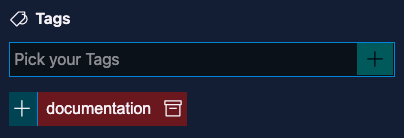
When the tag is created, you will be able to re-use it for other content.
Info
You can add multiple tags at once by entering them as comma-separated values and pressing the ENTER key.
Properties
Section titled “Properties”| Property | Type | Description | Required | Default |
|---|---|---|---|---|
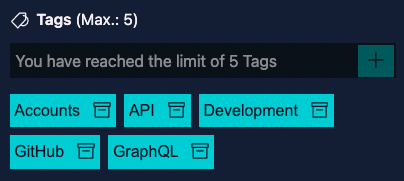
taxonomyLimit | number | Defines the maximum number of items that can be selected. By default set to 0 which allows unlimited items to be selected. | Optional | 0 |
singleValueAsString | boolean | When set to true, a single value will be added as a string value instead of an array. | Optional | false |
Info
When a limit is defined, this will get reflected in the UI as well:
{ "title": "Tags", "name": "tags", "type": "tags"}---tags: - Development - GitHub - GraphQL - API---Categories
Section titled “Categories”The categories field is similar to the tags field. Categories are also stored in the
.frontmatter/database/taxonomyDb.json file.
Properties
Section titled “Properties”| Property | Type | Description | Required | Default |
|---|---|---|---|---|
taxonomyLimit | number | Defines the maximum number of items that can be selected. By default set to 0 which allows unlimited items to be selected. | Optional | 0 |
singleValueAsString | boolean | When set to true, a single value will be added as a string value instead of an array. | Optional | false |
{ "title": "Categories", "name": "categories", "type": "categories"}---categories: - Development---Taxonomy
Section titled “Taxonomy”The taxonomy is similar to the tags and categories field, but allows you to define your own
taxonomy values and structure.
Properties
Section titled “Properties”| Property | Type | Description | Required | Default |
|---|---|---|---|---|
taxonomyLimit | number | Defines the maximum number of items that can be selected. By default set to 0 which allows unlimited items to be selected. | Optional | 0 |
taxonomyId | string | Set the id of your custom taxonomy definition defined in the frontMatter.taxonomy.customTaxonomy setting. | Required | |
singleValueAsString | boolean | When set to true, a single value will be added as a string value instead of an array. | Optional | false |
Custom taxonomy
Section titled “Custom taxonomy”The frontMatter.taxonomy.customTaxonomy setting allows you to provide a list of custom taxonomy
data. Each of the taxonomy data contains a id and an array of options.
Here is an example of the custom taxonomy setting definition:
"frontMatter.taxonomy.customTaxonomy": [ { "id": "customTaxonomy", "options": [ "Option 1", "Option 2", "Option 3" ] }]{ "title": "Custom taxonomy", "name": "customTags", "type": "taxonomy", "taxonomyId": "customTaxonomy"}---customTags: - custom-development---Fields
Section titled “Fields”The fields field, allows you to create multi-dimensional content type fields (sub-fields). This is
useful when you want to create a complex content type. In case you want to define a list data, you
will have to use the block field.
When you specify the field type as fields, you can define sub-fields in one of two ways:
- Inline, using the
fieldsproperty directly on the field definition. - By reference, using the
fieldGroupproperty to point to a reusable field group defined infrontMatter.taxonomy.fieldGroups.
Properties
Section titled “Properties”| Property | Type | Description | Required | Default |
|---|---|---|---|---|
fields | object[] | Define the sub-fields inline. All the above types are supported. | Required if fieldGroup is not set | |
fieldGroup | string | Reference a field group defined in frontMatter.taxonomy.fieldGroups to use as sub-fields. | Required if fields is not set |
Example 1 - Inline sub-fields
Section titled “Example 1 - Inline sub-fields”{ "frontMatter.taxonomy.contentTypes": [ { "name": "multi-dimensional", "pageBundle": false, "fields": [ ... { "title": "Photo", "type": "fields", "name": "photo", "fields": [ { "title": "Title", "name": "title", "type": "string" }, { "title": "URL", "name": "url", "type": "image" } ] } ] } ]}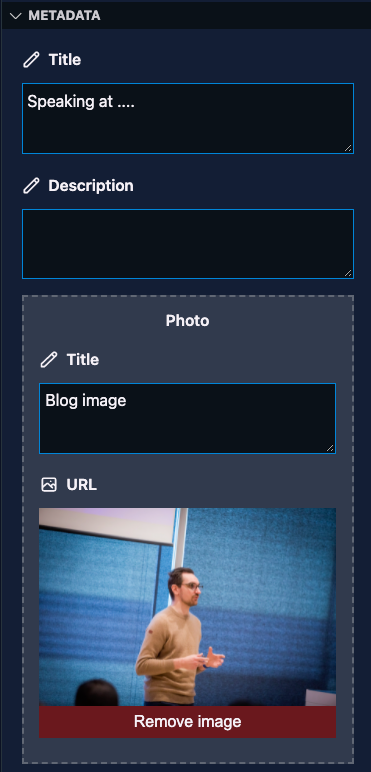
---photo: title: "Photo 1" url: /social/400285cf-4928-4c07-8ca5-158f249a3bc1.png---Example 2 - Reusable field group
Section titled “Example 2 - Reusable field group”{ "frontMatter.taxonomy.contentTypes": [ { "name": "field group test", "pageBundle": true, "fields": [ { "title": "title", "name": "title", "type": "string", "single": true }, { "title": "Dates", "type": "fields", "name": "dates", "fieldGroup": "startAndEndFields" } ] } ], "frontMatter.taxonomy.fieldGroups": [ { "id": "startAndEndFields", "fields": [ { "title": "Date", "name": "date", "type": "datetime" }, { "title": "All Day", "name": "allDay", "type": "boolean" } ] } ]}---dates: date: 2024-01-01T00:00:00.000Z allDay: true---FieldCollection
Section titled “FieldCollection”The fieldCollection field type allows you to reuse fields in multiple content types. This is
especially useful when you have a lot of content types and want to reuse the same fields.
Prerequisites
Section titled “Prerequisites”To work with the fieldCollection field type, you need to define a field group (a set of fields for
your data) in the frontMatter.taxonomy.fieldGroups setting.
"frontMatter.taxonomy.fieldGroups": [ { "id": "generalFields", "fields": [ { "title": "Title", "name": "title", "type": "string", "single": true }, { "title": "Description", "name": "description", "type": "string" } ] }]Properties
Section titled “Properties”| Property | Type | Description | Required | Default |
|---|---|---|---|---|
fieldGroup | string | Define the field group that will be used to create a list of data. | Required |
Example
Section titled “Example”"frontMatter.taxonomy.contentTypes": [ { "name": "custom page", "pageBundle": true, "fields": [ { "title": "General", "name": "general", "type": "fieldCollection", "fieldGroup": "generalFields" } ] }]---title: "My page"description: "Page description"---The block field type allows you to define a group of fields which can be used to create a list of data.
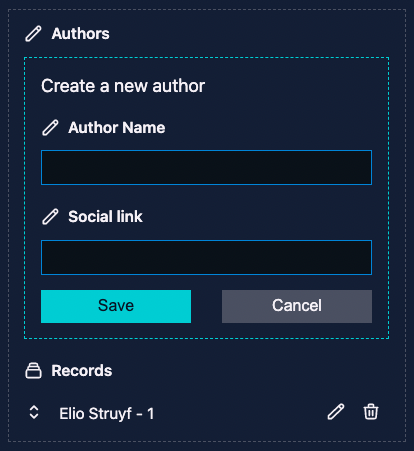
Prerequisites
Section titled “Prerequisites”To work with the block field type, you need to define a field group (a set of fields for your
data) in the frontMatter.taxonomy.fieldGroups setting.
"frontMatter.taxonomy.fieldGroups": [ { "id": "author", "labelField": "name", "fields": [ { "title": "Author Name", "name": "name", "type": "string", "single": true }, { "title": "Social link", "name": "social", "type": "string", "single": true } ] }]Info
You can use the same field types as you would use in the regular content types.
Properties
Section titled “Properties”| Property | Type | Description | Required | Default |
|---|---|---|---|---|
fieldGroup | string[] | Define the field group(s) that will be used to create a list of data. | Required |
"frontMatter.taxonomy.contentTypes": [ { "name": "page", "fields": [ { "title": "Authors", "name": "authors", "type": "block", "fieldGroup": [ "author" ] }, ... }]Important
If you want, you can also create field groupings within the field grouping. This is useful when you want to create sub-groups of data.
---authors: - name: Elio Struyf social: https://twitter.com/eliostruyf fieldGroup: author---Data file
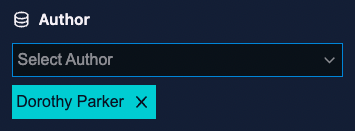
Section titled “Data file”The dataFile field type allows you to use a data file to populate the field with a list of
options. For instance, if you have a data file with all the authors of your site, you can use the
dataFile field type to populate the authors field with the data from the authors data file.
Prerequisites
Section titled “Prerequisites”To use the dataFile field type, you need to have a definition for a data file in place. Here is an
example of the authors sample:
{ "frontMatter.data.files": [ { "id": "authors", "title": "Authors", "file": "[[workspace]]/data/authors.json", // Adapt to your needs "schema": { "title": "Author", "type": "object", "required": ["name", "url"], "properties": { "slug": { "title": "slug", "type": "string" }, "name": { "title": "name", "type": "string" }, "url": { "title": "url", "type": "string" } } } } ]}Properties
Section titled “Properties”| Property | Type | Description | Required | Default |
|---|---|---|---|---|
dataFileId | string | Specify the ID of the data file to use for this field. | Required | |
dataFileKey | string | Specify the key of the data file to use for this field. | Required | |
dataFileValue | string | Specify the property name that will be used to show the value for the field. | Optional | |
dataFileAdditionalFields | string[] | Specify additional field names from the data record to store alongside the key field. When set, the frontmatter value will be an object instead of a plain string. | Optional | |
multiple | boolean | Specify if you want to select one or multiple records. | Optional | false |
"frontMatter.taxonomy.contentTypes": [ { "name": "page", "fields": [ { "title": "Author", "name": "author", "type": "dataFile", "dataFileId": "authors", "dataFileKey": "slug", "dataFileValue": "name", "multiple": true }, ... }]---author: - dorothy-parker---Storing multiple fields as an object
Section titled “Storing multiple fields as an object”By default, only the dataFileKey value (e.g. the slug) is stored in the frontmatter. If you need to store multiple fields from the data record as an object, use dataFileAdditionalFields to specify which extra fields to include.
"frontMatter.taxonomy.contentTypes": [ { "name": "page", "fields": [ { "title": "Author", "name": "author", "type": "dataFile", "dataFileId": "authors", "dataFileKey": "name", "dataFileValue": "name", "dataFileAdditionalFields": ["slug"] }, ... }]---author: name: Elio Struyf slug: elio-struyf---When multiple is also enabled, each selected entry will be stored as an object in the array:
---authors: - name: Elio Struyf slug: elio-struyf - name: John Doe slug: john-doe---The slug field allows you to create/update the slug of the current page.
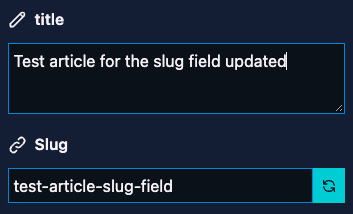
Properties
Section titled “Properties”| Property | Type | Description | Required | Default |
|---|---|---|---|---|
editable | boolean | Specify if you allow manual changes, or if the slug is generated automatically. | Optional | true |
{ "title": "Slug", "name": "slug", "type": "slug", "editable": true, "default": "{{slug}}"}---slug: version-8-0-0-release-notes---Info
The slug is generated based on the title of the page. More information about it can be found in the slug documentation section.
contentRelationship
Section titled “contentRelationship”The contentRelationship field type allows you to create relationships between content. It can for
instance be used to reference an author, or a related blog post.
Properties
Section titled “Properties”| Property | Type | Description | Required | Default |
|---|---|---|---|---|
contentTypeName | string | The name of the content-type to link. | Required | |
contentTypeValue | string | The type of link/value you want to add. This can be slug, or path. | Required | |
sameContentLocale | boolean | Specify if you want to use the same content’s locale for the relationship field. | Optional | true |
multiple | boolean | Specify if you want to select one or multiple relationships. | Optional | false |
Example 1
Section titled “Example 1”{ "title": "Session", "name": "session", "type": "contentRelationship", "contentTypeName": "session", "contentTypeValue": "slug"}---session: /session-slug/---Example 2
Section titled “Example 2”{ "title": "Session", "name": "session", "type": "contentRelationship", "contentTypeName": "session", "contentTypeValue": "slug", "multiple": true}---session: - /session1-slug/ - /session2-slug/---customField
Section titled “customField”The customField field type allows you to create and add your own fields to render.
Important
This is an experimental feature, and might change in the future. To use it, you need to enable the exeperimental features, more information about it can be found in the experimental features section.
Properties
Section titled “Properties”| Property | Type | Description | Required | Default |
|---|---|---|---|---|
customType | string | The name of the custom field type to use. | Required |
{ "title": "Custom field", "name": "customField", "type": "customField", "customType": "customField"}The outcome depends on your custom field implementation.
Info
Check out registering a custom field for a sample implementation.
Divider
Section titled “Divider”The divider field type allows you to add a divider to your content type. This is useful when you
want to group fields together.
Properties
Section titled “Properties”You only need to specify the type property and name:
{ "name": "divider", "type": "divider"}Outcome
Section titled “Outcome”
Heading
Section titled “Heading”The heading field type allows you to add a heading to your content type. This is useful when you
want to group fields together.
{ "title": "Section title", "name": "sectionTitleWithDescription", "description": "This is just a dummy description to test out the field description", "type": "heading"},{ "title": "Section title without description", "name": "sectionTitleWithoutDescription", "type": "heading"}Outcome
Section titled “Outcome”