
Settings
Overview
Section titled “Overview”Most of Front Matter is configurable to your needs. In this part of the documentation all settings are explained.
Settings view
Section titled “Settings view”On the Front Matter CMS dashboard, you can find the settings view. This view allows you to configure the common settings of the CMS.

Info
You find also a link to get a full diagnostic of your settings. This is useful when you want to troubleshoot your settings or know what the CMS is loading.
Team settings and local settings
Section titled “Team settings and local settings”Since version 4 of Front Matter, Team settings got introduced. Teams settings allow you to have all
settings on the project/solution level. You will be able to override them on user/local level
(.vscode/settings.json).
The purpose of team settings is to share the global configuration of your CMS configuration. This way, your whole team can use the same tags/categories but apply their changes locally.
As you do not typically share your .vscode/settings.json configuration, we went for a
frontmatter.json file on the root of your project/solution. The settings you provide in this JSON
file are the same as you can configure on a local level. This allows you to easily copy, move
settings from team to local level and vice versa.
Info
The
frontmatter.jsonfile can be placed anywhere in your project/solution. The CMS will automatically detect it.
Migrate local settings to team settings
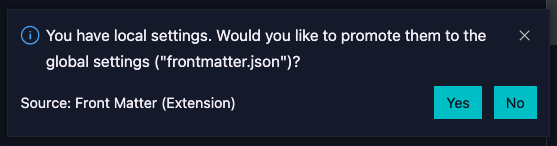
Section titled “Migrate local settings to team settings”To allow you to easily migrate already defined settings, you can run the
Promote settings from local to team level command. The very first time, it will also ask you if
there are settings that can be promoted.
Splitting your settings in multiple files
Section titled “Splitting your settings in multiple files”Some of the Front Matter settings can be split in multiple files to make management of these easier. For example, in case you are using multiple content-types for your site, you can now split each content-type to its own file. This allows you to easily manage the settings for each content-type.
Important
The configuration of the
frontmatter.jsonfile will override the settings which you might have splitted.
Supported settings to split
Section titled “Supported settings to split”The following settings are supported to be split in multiple files:
| Setting name | Folder path | JSON Schema |
|---|---|---|
frontMatter.content.pageFolders | ./.frontmatter/config/content/pagefolders/ | https://frontmatter.codes/config/content.pagefolders.schema.json |
frontMatter.content.placeholders | ./.frontmatter/config/content/placeholders/ | https://frontmatter.codes/config/content.placeholders.schema.json |
frontMatter.content.snippets | ./.frontmatter/config/content/snippets/ | https://frontmatter.codes/config/content.snippets.schema.json |
frontMatter.custom.scripts | ./.frontmatter/config/custom/scripts/ | https://frontmatter.codes/config/custom.scripts.schema.json |
frontMatter.data.files | ./.frontmatter/config/data/files/ | https://frontmatter.codes/config/data.files.schema.json |
frontMatter.data.folders | ./.frontmatter/config/data/folders/ | https://frontmatter.codes/config/data.folders.schema.json |
frontMatter.data.types | ./.frontmatter/config/data/types/ | https://frontmatter.codes/config/data.types.schema.json |
frontMatter.media.contentTypes | ./.frontmatter/config/media/contenttypes/ | https://frontmatter.codes/config/media.contenttypes.schema.json |
frontMatter.taxonomy.contentTypes | ./.frontmatter/config/taxonomy/contenttypes/ | https://frontmatter.codes/config/taxonomy.contenttypes.schema.json |
frontMatter.taxonomy.fieldGroups | ./.frontmatter/config/taxonomy/fieldgroups/ | https://frontmatter.codes/config/taxonomy.fieldgroups.schema.json |
Important
The folder path is relative to the root of your project/solution and you create the files in their corresponding folder. The file name is the same as the
idof the setting.
You can use the JSON schema to validate and get intellisense for the settings. Use it as follows:
{ "$schema": "https://frontmatter.codes/config/content.pagefolders.schema.json"}Example of splitting a setting
Section titled “Example of splitting a setting”Example 1: Specify a blog page folder
Section titled “Example 1: Specify a blog page folder”Example of specifying a page folder in a separate file:
| .frontmatter| - config| -- content| --- pagefolders| ---- blog.jsonContents of the blog.json file:
{ "$schema": "https://frontmatter.codes/config/content.pagefolders.schema.json", "title": "blog", "path": "[[workspace]]/blog"}Example 2: Specify a custom data type
Section titled “Example 2: Specify a custom data type”You are also able to define sub-folders for your settings, that way, you can easily group your
settings. For example, in this case we’ll create a baz data type in its own folder.
| .frontmatter| - config| -- data| --- types| ---- bar| ----- baz.jsonContents of the baz.json file:
{ "$schema": "https://frontmatter.codes/config/data.types.schema.json", "id": "hugo.params.baz", "schema": { "title": "Baz Site Parameters for hugo-toroidal", "type": "object", "properties": { "First": { "title": "First Property", "description": "First Baz", "type": "string", "default": "" } } }}Extending settings
Section titled “Extending settings”You can extend the settings of Front Matter by using the frontMatter.extends setting. This allows
you to extend the settings from a custom local or remote location. This can be useful if you want to
share a common set of settings across multiple projects.
Example
Section titled “Example”{ "$schema": "https://frontmatter.codes/frontmatter.schema.json", "frontMatter.extends": [ "https://platen.io/frontmatter/platen.json", "./config/frontmatter.config.json" ], ...}Extending with code
Section titled “Extending with code”You can also extend the settings with a custom JavaScript module/file. This functionality allows you to extend the settings with more dynamic settings. For instance, you can use this to load settings based on the current machine.
Create a new JavaScript file in your project. For instance, frontmatter.config.js.
Here is an example of how you can extend the settings:
const path = require('path');require('dotenv').config({  path: path.join(__dirname, `.env`)});
module.exports = async (config) => {  return {    ...config,    "frontMatter.preview.host": process.env.FRONTMATTER_PREVIEW_HOST  }};
Once the file has been created, you can reference it in your frontmatter.json file:
{ "frontMatter.config.dynamicFilePath": "[[workspace]]/frontmatter.config.js"}Reviewing composed settings
Section titled “Reviewing composed settings”You can inspect your composed settings with the diagnostic logging command, which shows you the Complete frontmatter.json config in a virtual Markdown document. Use that output to verify that your split configuration settings are applied the way you expect.