
Site preview
Overview
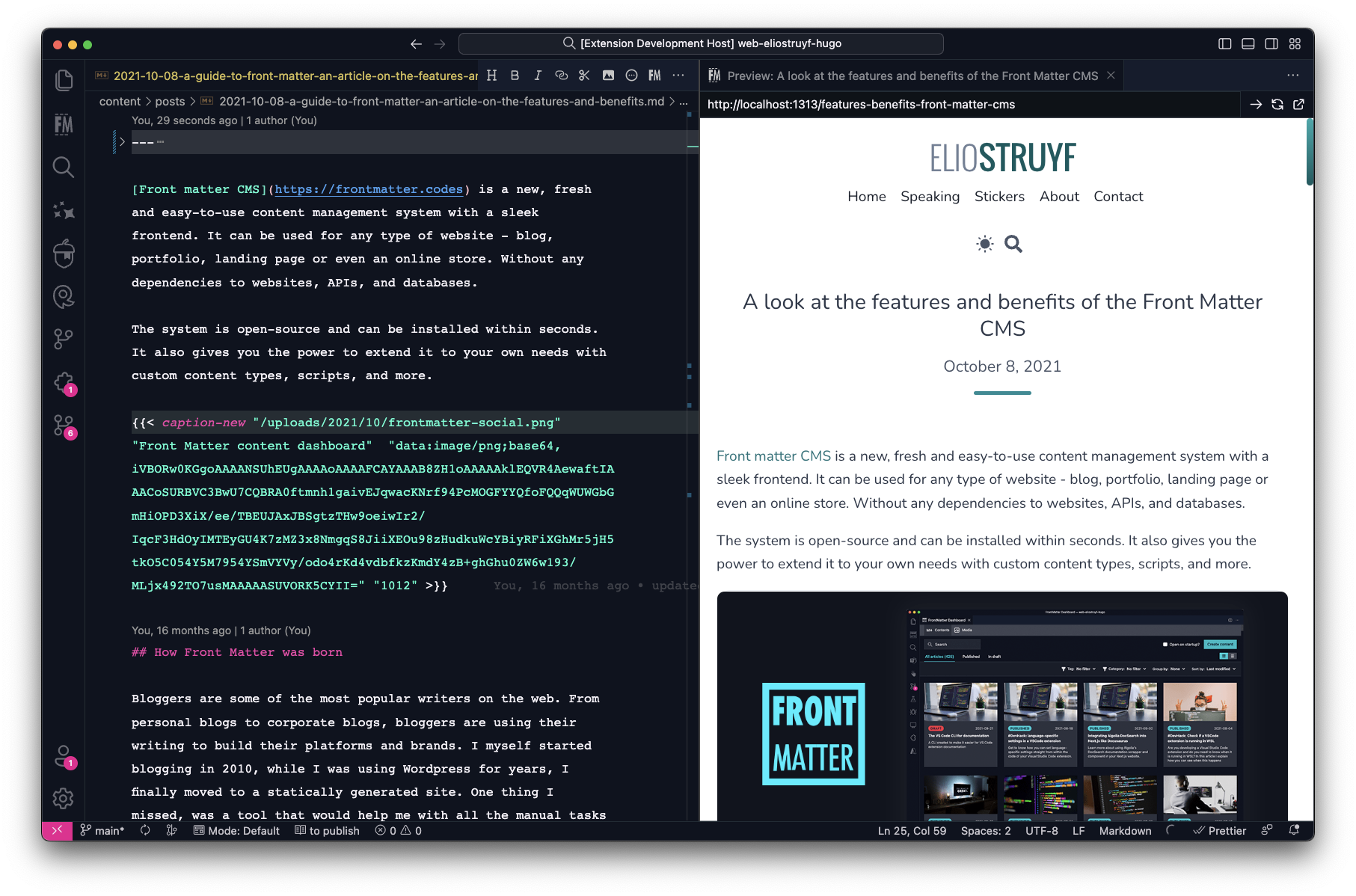
Section titled “Overview”The Markdown preview is not consistently delivering the same result as the one you will see on your site. The Front Matter CMS extension provides you a way to show the actual site instead.
Info
Once a preview is opened, you will be able to manually change the URL. Something to note is that the URL will not be updated when navigating to other pages.
Configuration
Section titled “Configuration”To use the site preview, you will first have to set the frontMatter.preview.host setting which
you can define in the frontmatter.json file.
For example, with Hugo SSG, the local server spins up on http://localhost:1313.
When you set this URL as the value of the frontMatter.preview.host setting.
You can click on the open preview button and the site preview will be shown.
Configuration levels
Section titled “Configuration levels”To support as many Static-Site Generators and frameworks as possible, the configuration can be set on different levels:
Globally
Section titled “Globally”On the global level, you have the following settings available:
{ "frontMatter.preview.host": "http://localhost:1313", "frontMatter.preview.pathName": "", "frontMatter.preview.trailingSlash": false}frontMatter.preview.host
Section titled “frontMatter.preview.host”The frontMatter.preview.host setting is used to specify the host of your website. This setting is
required to open the preview.
frontMatter.preview.pathName
Section titled “frontMatter.preview.pathName”The frontMatter.preview.pathName setting is used to specify the path that you want to add after the
frontMatter.preview.host setting value and before your slug.
This setting can be used for instance to include include a global prefix: /docs.
{ "frontMatter.preview.pathName": "docs"}When you open the preview, the URL will be: <preview host URL>/docs/<slug>.
frontMatter.preview.trailingSlash
Section titled “frontMatter.preview.trailingSlash”The frontMatter.preview.trailingSlash setting is used to specify if you want to add a trailing
slash to the preview URL.
{ "frontMatter.preview.trailingSlash": true}When you open the preview, the URL will be: <preview host URL>/<slug>/.
Page folder
Section titled “Page folder”On the page folder level, you have the following related preview settings:
{ "frontMatter.content.pageFolders": [ { "title": "blog", "path": "[[workspace]]/src/content/blog", "previewPath": "/blog", "trailingSlash": false } ]}previewPath on page folder
Section titled “previewPath on page folder”The previewPath property on the frontMatter.content.pageFolders setting, will override what is
defined globally and can be used to specify a preview path per page folder. It works the same as the
frontMatter.preview.pathName setting.
trailingSlash on page folder
Section titled “trailingSlash on page folder”The trailingSlash property on the frontMatter.content.pageFolders setting, will override what is
defined globally and can be used to specify if you want to add a trailing slash to the preview URL.
Content type
Section titled “Content type”On the content type level, you have the following related preview settings:
"frontMatter.taxonomy.contentTypes": [ { "name": "doc", "pageBundle": false, "previewPath": "/docs", "trailingSlash": true, "fields": [] }]previewPath on content type
Section titled “previewPath on content type”Similar to the previewPath on the page folder level, the previewPath property on the content
type level will override what is defined on page folder level and globally.
trailingSlash on content type
Section titled “trailingSlash on content type”Similar to the trailingSlash on the page folder level, the trailingSlash property on the content
type level will override what is defined on page folder level and globally.
Placeholder support
Section titled “Placeholder support”Since version 8.3.0, the you can use placeholders in the previewPath property and there are a
couple of additional placeholders available which can be used for your preview paths.
Info
You can find these placeholders in the placeholders section.
Examples
Section titled “Examples”Usage of front matter field and path values
Section titled “Usage of front matter field and path values”"frontMatter.content.pageFolders": [ { "title": "post", "path": "[[workspace]]/content/{{year}}/{{month}}", "previewPath": "/{{fm.type}}/{{pathToken.3}}/{{pathToken.4}}", "trailingSlash": true, "contentTypes": ["post"] }]The preview path will generate the following path: /post/2024/06/<slug>/.
Use the publishing date in your preview path
Section titled “Use the publishing date in your preview path”"frontMatter.content.pageFolders": [ { "title": "blog", "path": "[[workspace]]/src/content/blog", "previewPath": "/{{fm.type}}/{{date|yyyy}}", "trailingSlash": true, "contentTypes": ["blog"] }]The preview path will generate the following path: /blog/2024/<slug>/.
Info
When using the
{{date|<format>}}placeholder in thepreviewPathproperty, it looks for a field with the namedatein the front matter, or for adatefield where theisPublishDateproperty is set totrue.
Use the locale in your preview path
Section titled “Use the locale in your preview path”"frontMatter.content.pageFolders": [ { "title": "blog", "path": "[[workspace]]/src/content/blog", "previewPath": "/{{locale|ignore:en}}", "trailingSlash": true, "contentTypes": ["blog"] }]The preview path will generate the following path for English content: /<slug>/. For other locales,
the preview path will generate the following path: /<locale>/<slug>/ (e.g. /nl/<slug>/).
Info
The
{{locale}}placeholder will return the locale of the page when you have a multi-language setup.
Open on the website
Section titled “Open on the website”With the frontMatter.website.host setting, you can specify the host of your website. Once the
setting is configured, you can click on the Open on website button to open the current page on
your website.
Info
The
frontMatter.website.hostsetting can be configured in thefrontmatter.jsonfile.
Support for Browse Lite extension
Section titled “Support for Browse Lite extension”In case you have the Browse Lite extension installed, Front Matter will use this extension to open the preview. The advantage of this extension is that it uses a real browser in the background to render the preview. For frameworks like Nuxt, this allows you to see the updates immediately.
