
Content view
The contents view is the default view when you open the dashboard. It will show you all the pages in your project, and allow you to filter and sort them.
Open content dashboard in VS Code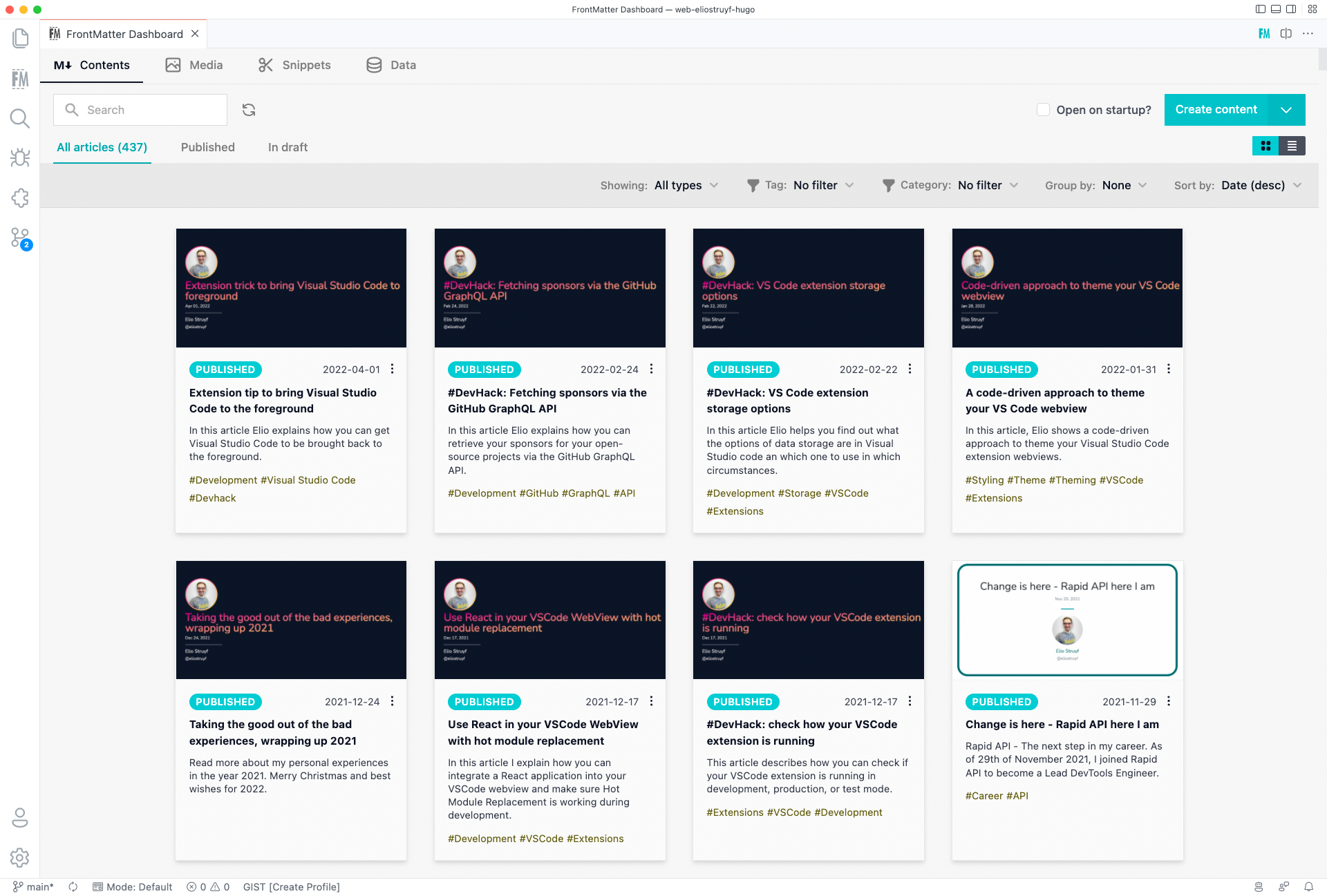
Card configuration
Section titled “Card configuration”Card field configuration
Section titled “Card field configuration”If you want to change the fields/values that are shown on the content card, you can do so by using the following settings:
| Setting | Description | Default |
|---|---|---|
frontMatter.dashboard.content.card.fields.title | The field name to use for the title. | "" |
frontMatter.dashboard.content.card.fields.description | The field name to use for the description. | "" |
frontMatter.dashboard.content.card.fields.state | Show/hide the state/draft status. Set to false to hide it. | true |
frontMatter.dashboard.content.card.fields.date | Show/hide the date. Set to false to hide it. | true |
Card tags
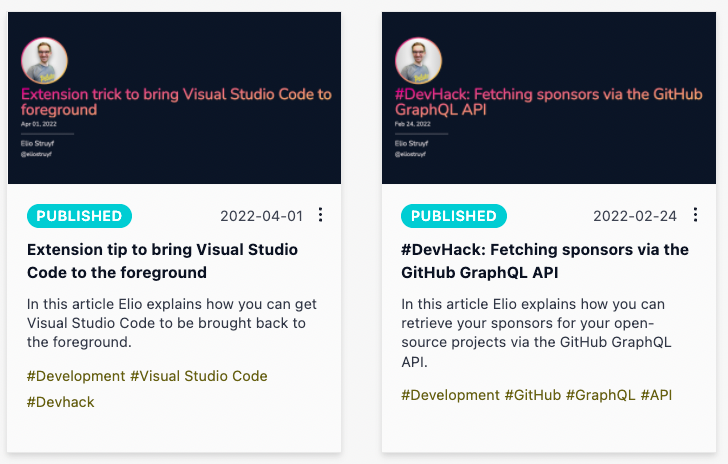
Section titled “Card tags”The tags underneath the content abstract/description is changable. By default, the card will show
the value of the tags field, but you can update the field by specifying the value in the
frontMatter.dashboard.content.cardTags setting.
Card UI extensibility
Section titled “Card UI extensibility”In case you want to take more control over the card UI, you can add your own custom code by using our extensibility library. More information about this can be found in the UI extensibility section.
Draft status navigation
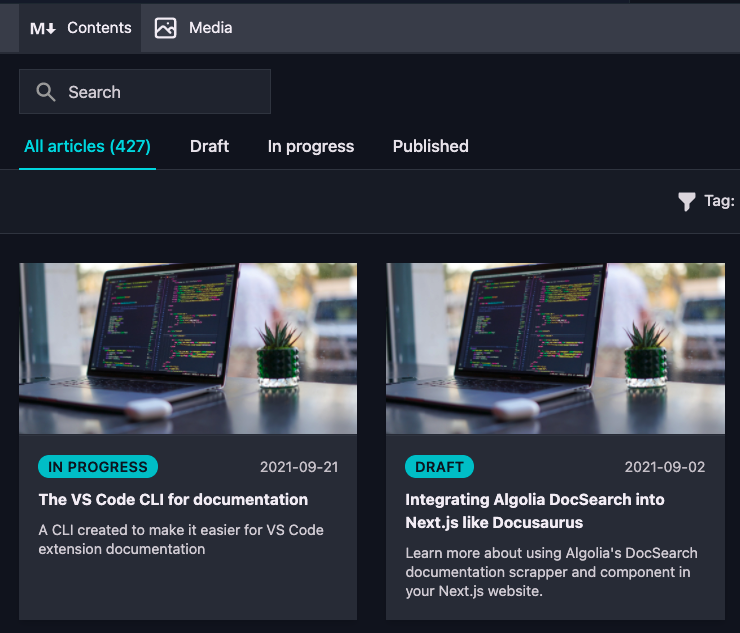
Section titled “Draft status navigation”By default, the contents view will show all your pages, and will you will be able to filter by draft and published pages.
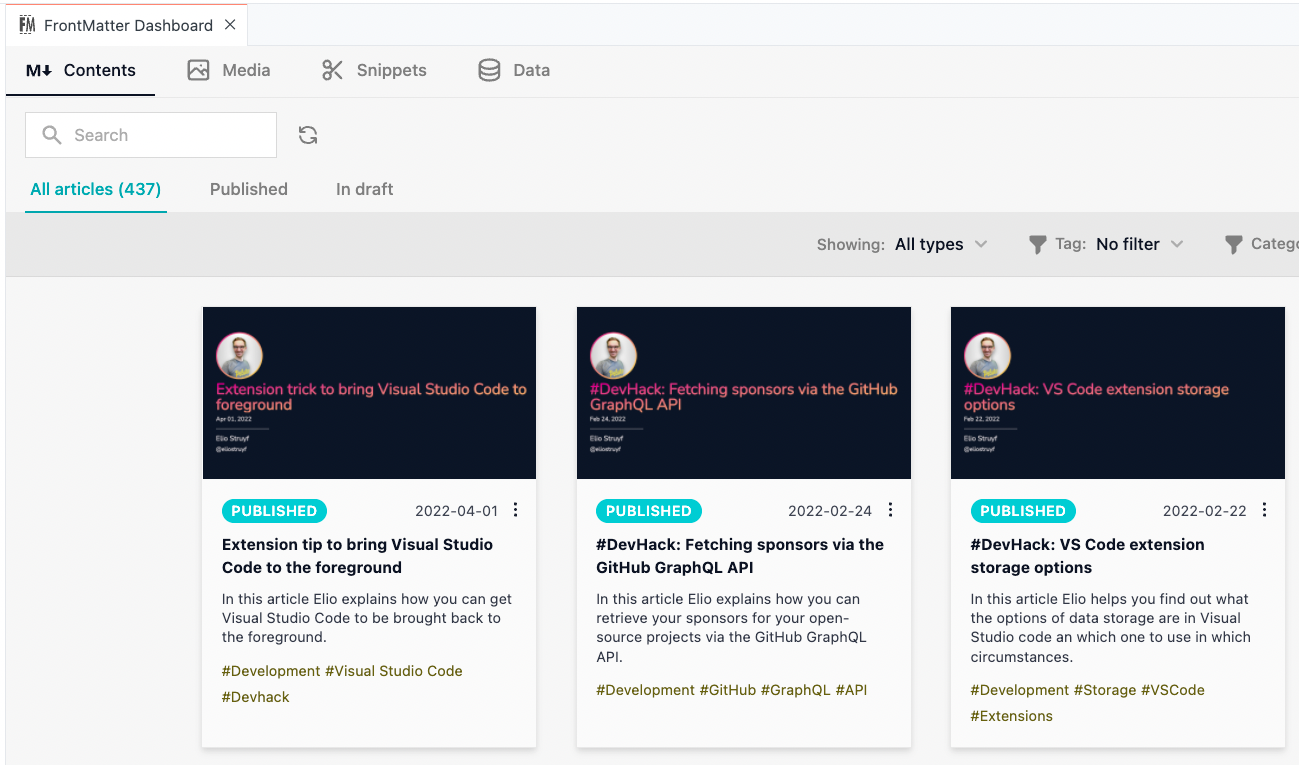
If you want to use other statuses, you can do so by specifying your own draft field and value.
Info
Filters
Section titled “Filters”By default, the content view will show all your pages, but you can filter them by using the following filter:
- Content folder (when you have multiple registered)
- Tag filter
- Category filter
You can change the default filters, or configure your own by updating the frontMatter.content.filters
setting.
If you want the dashboard to open with predefined filter values, use the
frontMatter.dashboard.content.defaults.filters setting.
Configure filters
Section titled “Configure filters”The default filter configuration is as follows:
{ "frontMatter.content.filters": [ "contentFolders", "tags", "categories", ]}You can change the default filters, or configure your own by updating the frontMatter.content.filters
setting as follows:
{ "frontMatter.content.filters": [ "contentFolders", "tags", { "title": "My custom filter", "name": "field-name", } ]}Info
The
nameproperty should be the name of the front matter field you want to filter by.
Sorting
Section titled “Sorting”By default, the content is sorted by the following options:
- Last modified
- Filename (asc/desc)
You can change the sorting options by specifying the frontMatter.content.sorting setting. This
setting allows you to define the sorting options for the content view.
Configure sorting options
Section titled “Configure sorting options”| Property | Description | Default |
|---|---|---|
title | The title of the sorting option | "" |
name | The name of the field to sort by (needs to be present in your content its front matter) | "" |
order | The order of the sorting (ascending or descending). Option values to use: asc or desc. | "" |
type | The type of field value. Option values to use: string, date, and number. | "" |
{ "frontMatter.content.sorting": [ { "title": "Date (asc)", "name": "date", "order": "asc", "type": "date" }, { "title": "Date (desc)", "name": "date", "order": "desc", "type": "date" } ]}Default sorting
Section titled “Default sorting”To define your default sorting options by setting the
frontMatter.content.defaultSorting setting for the content view, and the
frontMatter.media.defaultSorting setting for the media view.
If you want the contents dashboard to open with a specific sort selection, use
frontMatter.dashboard.content.defaults.sorting.
Grouping
Section titled “Grouping”By default, you can group your content by the following options:
- Year
- Draft status
You can change the grouping options by specifying the frontMatter.content.grouping setting.
This setting allows you to define the grouping options for the content view.
If you want the contents dashboard to open with a specific grouping applied, use
frontMatter.dashboard.content.defaults.grouping.
Configure grouping options
Section titled “Configure grouping options”| Property | Description | Default |
|---|---|---|
title | The title of the grouping option | "" |
name | The name of the field to group by (needs to be present in your content its front matter) | "" |
{ "frontMatter.content.grouping": [ { "title": "Content Type", "name": "fmContentType" } ]}Default opening state
Section titled “Default opening state”You can define how the contents dashboard opens by configuring the
frontMatter.dashboard.content.defaults setting. This lets you preselect a sorting option,
grouping mode, and one or more filters.
{ "frontMatter.dashboard.content.defaults": { "sorting": "LastModifiedDesc", "grouping": "Year", "filters": { "contentFolders": "docs", "tags": "AI", "categories": "guides" } }}Supported filter keys:
contentFolderstagscategories- Any custom filter field you configured via
frontMatter.content.filters
Built-in grouping values:
YearDraftNone
For sorting, use one of the built-in sort IDs such as LastModifiedDesc, LastModifiedAsc,
PublishedDesc, PublishedAsc, FileNameAsc, or FileNameDesc, or use a custom sorting ID from
your frontMatter.content.sorting configuration.
Show on startup
Section titled “Show on startup”If you want, you can check on the Open on startup? checkbox. This setting will allow the dashboard
to automatically open when you launch the project in VS Code. It will only apply to the current
project, not for all of them.
Content pagination
Section titled “Content pagination”By default, the content is paginated by 16 items. If you want, you can disable the pagination by
setting the frontMatter.dashboard.content.pagination setting to false.
In case you want to change the number of items per page, you can specify a number in the same setting.
Content pinning
Section titled “Content pinning”In case you have content which you want to highlight, or use frequently. You can pin it to the top of the content view. This will allow you to quickly access.
