
Media view
The media view has been created to make it easier to look at all media files available for your articles. When you click on an image, it will show a lightbox, so that it is easier to glance at small images.
Open media dashboard in VS Code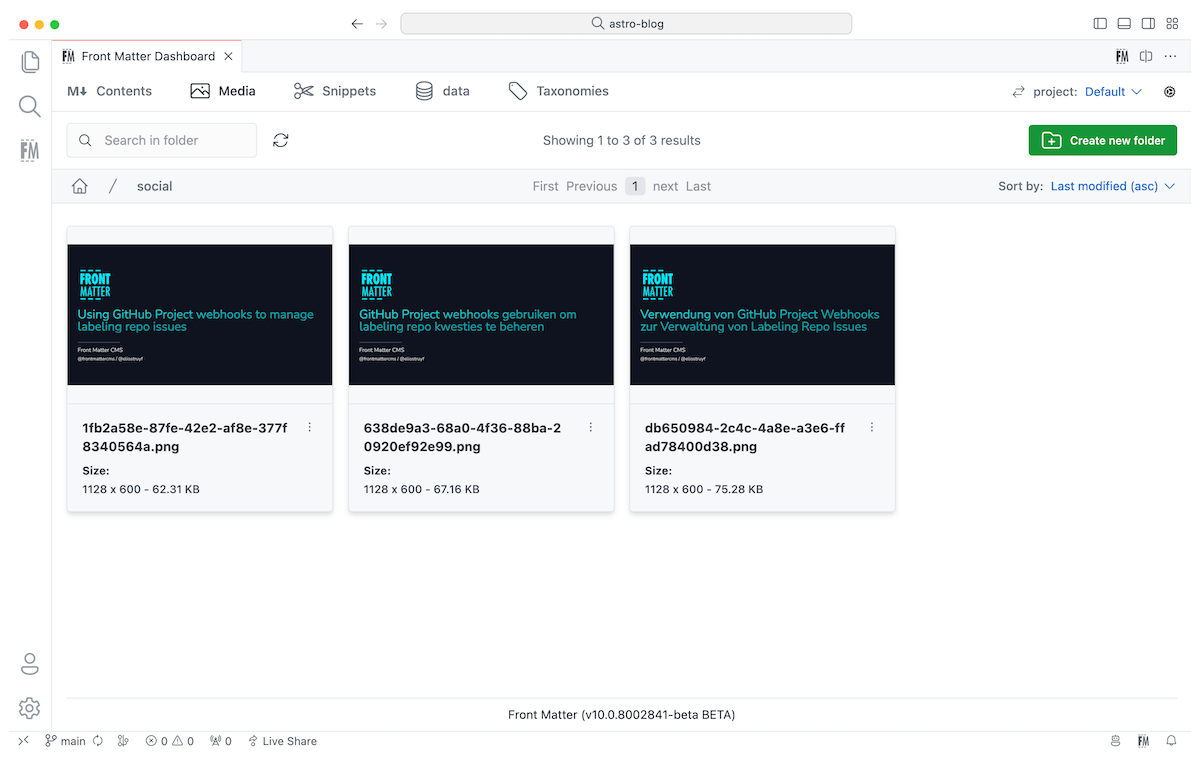
Define the media folder
Section titled “Define the media folder”You can use the frontMatter.content.publicFolder setting to define the location of your media
files. By default, it is unset, and will show all folders and files starting from the root of your
project.
{ "frontMatter.content.publicFolder": "public"}Relative paths
Section titled “Relative paths”In case the paths to your images need to be relative to the content file, you need to specify the following:
{ "frontMatter.content.publicFolder": { "path": "src/static", "relative": true }}Hexo support
Section titled “Hexo support”In case you are using Hexo in combinations with the asset folders, you can use the following settings:
source/images: If you want to use the default image location of Hexo;hexo:post_asset_folder: If you want to use the post asset folder functionality.
Supported files
Section titled “Supported files”By default, the media dashboard supports audio, image, and video files to be displayed and uploaded (drag&drop).
If you want that the media dashboard supports additional file types, you can define these in the
frontMatter.media.supportedMimeTypes setting.
"frontMatter.media.supportedMimeTypes": [ "image/*", "video/*", "audio/*"]Metadata
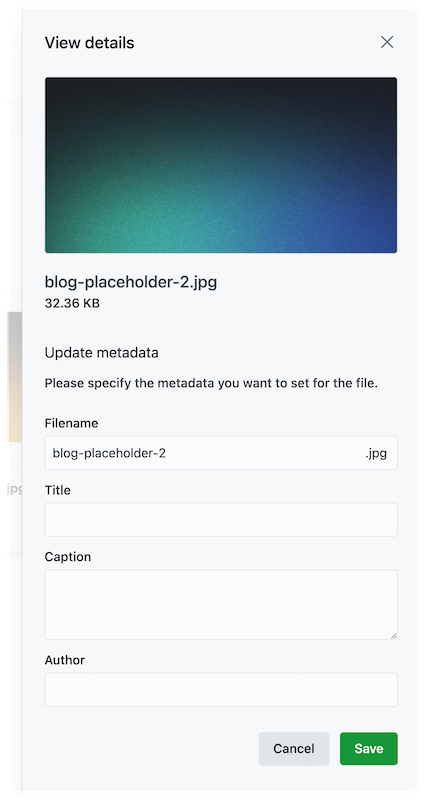
Section titled “Metadata”The media dashboard supports metadata for images. By default, the following metadata is supported:
- Title
- Caption
- Alternate text
Since version 10.0.0, you can define your own metadata fields by defining media content types.
Media content types
Section titled “Media content types”Media content types are defined in the frontMatter.media.contentTypes setting. This setting allows
you to define your own metadata fields for your media files.
Media content type properties
Section titled “Media content type properties”| Property | Type | Description | Default |
|---|---|---|---|
name | string | The name of the content type. | "" |
fileTypes | string[] | The file extensions that should be associated with this content type. | [] |
fields | field[] | The fields that should be shown for this content type. | [] |
Media field properties
Section titled “Media field properties”| Property | Type | Description | Default |
|---|---|---|---|
title | string | The title of the field. | "" |
name | string | The name of the field. | "" |
type | string | The type of the field (string). | "" |
single | boolean | If the field is a single line value. | true |
{ "frontMatter.media.contentTypes": [{ "name": "default", "fileTypes": ["png", "jpg", "jpeg", "gif"], "fields": [{ "title": "Title", "name": "title", "type": "string" }, { "title": "Author", "name": "author", "type": "string" }, { "title": "Alt text", "name": "alt", "type": "string" } ] }]}Media actions
Section titled “Media actions”On the image card, there are actions like setting metadata, copying the relative path, and deleting the media file.
Updating metadata
Section titled “Updating metadata”Setting metadata got introduced so that you can set the description and alt tag of your images. This functionality makes it easier to insert your images to your content.
Info
Check the Insert images section for more information.
Important
Data is stored in a local JSON file which you can find under:
<project>/.frontmatter/database/mediaDb.json. Please do not remove this file, or you will lose your metadata.
Info
Since version
10.12.0, the files in the.frontmatter/databasefolder are written in a human readable format with sorted keys, so that Git can merge them line by line. Existing files are reformatted once, when the extension activates.
Deleting a media file
Section titled “Deleting a media file”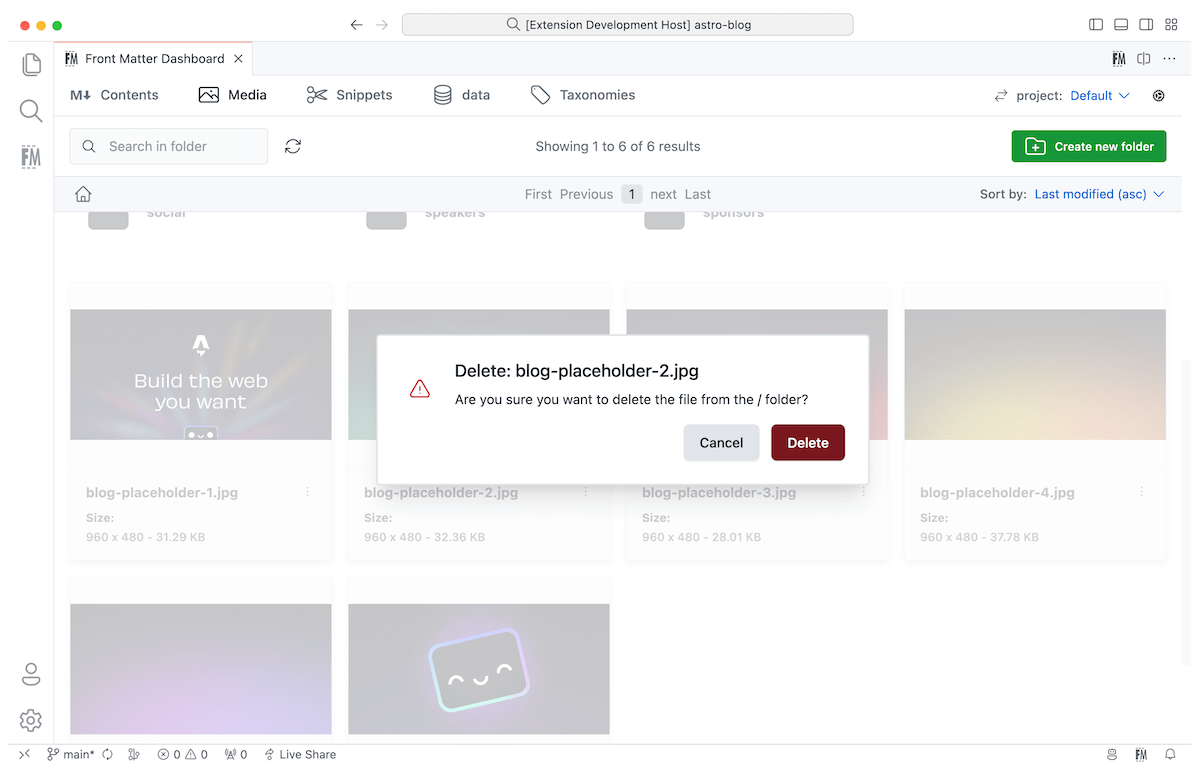
Custom media actions
Section titled “Custom media actions”In version 5.6.0 of the extension, you can now define your own media actions. This extensibility
option is very useful for adding your own optimizations, functionality, or anything else you want.
For instance, you can use it to optimize the image(s) size.
Custom actions for media files can be defined on two levels:
- File level: Single file action
- Folder level: Multiple files action
Info
Check out creating media scripts for more information.
Drag and Drop
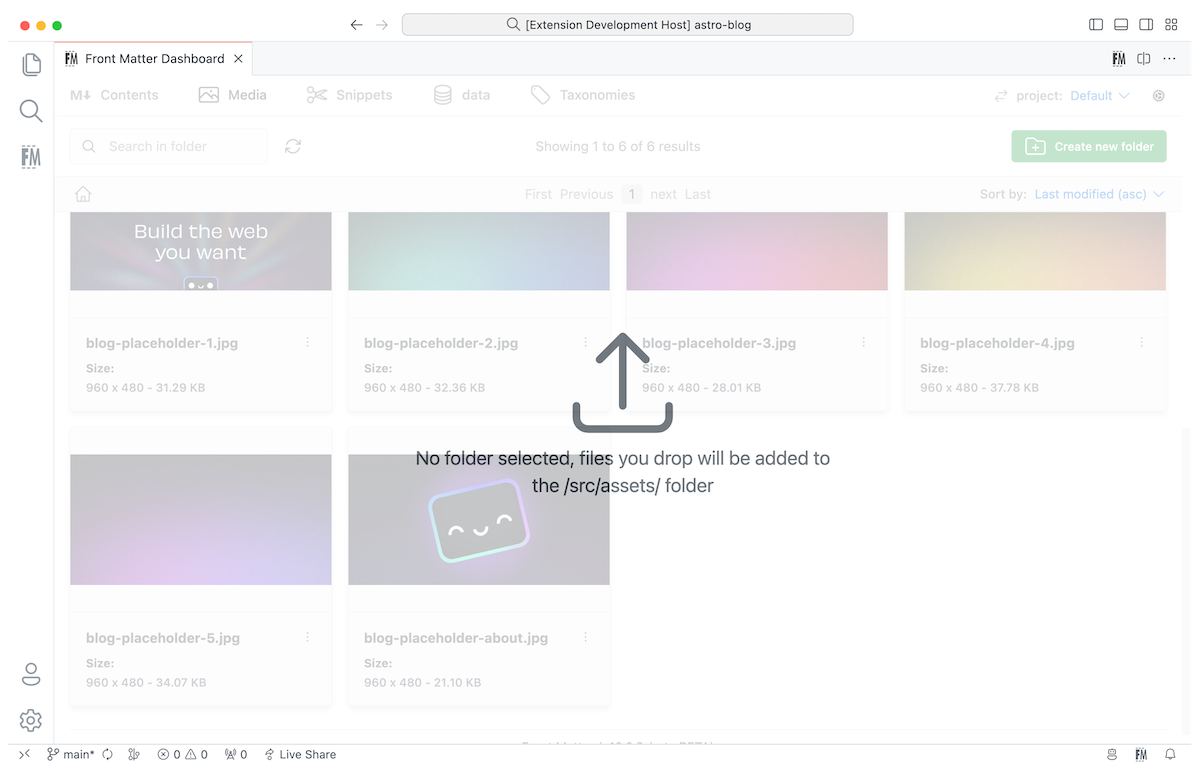
Section titled “Drag and Drop”On the media view, we enabled drag and drop for your media files. You can easily drop any image from your explorer/finder window into one of your folders.
Pasting images
Section titled “Pasting images”Since version 10.12.0, you can paste an image straight from your clipboard into a Markdown, MDX, or
any other of your supported content files. Front Matter CMS stores the image in your project
and inserts the markup for you, instead of leaving you with a screenshot you first have to save
somewhere.
The frontMatter.media.pasteBehavior setting defines what happens on paste:
dashboard(default): opens the media dashboard, where you pick the folder to store the image in, fill in its metadata, and choose the media snippet to insert it with.auto: stores the image and inserts the markup right away, without any prompts.disabled: leaves the paste to Visual Studio Code.
{ "frontMatter.media.pasteBehavior": "auto", "frontMatter.media.pasteFolder": "[[workspace]]/public/uploads", "frontMatter.media.pasteFileName": "{filename}-{date}-{time}"}Where the image is stored
Section titled “Where the image is stored”When frontMatter.media.pasteFolder is set, the image is stored in that folder. The path is relative
to your workspace and supports the [[workspace]] placeholder.
When the setting is left empty, Front Matter CMS picks the folder for you:
- For a page bundle, the folder of the content file itself
- For Hexo, the asset folder next to the post
- For all other projects, your public folder
Naming the pasted image
Section titled “Naming the pasted image”Images pasted from the clipboard carry no file name of their own, so the
frontMatter.media.pasteFileName setting defines the name to use. The default is
image-{date}-{time}, and the following placeholders are supported:
| Placeholder | Description |
|---|---|
{filename} | The name of the content file you are pasting into |
{date} | The current date, formatted as YYYYMMDD |
{time} | The current time, formatted as HHmmss |
The extension is added automatically, based on the type of image on your clipboard. When you paste a file which does have a name, like an image copied from your explorer/finder window, that name is kept.
Info
The paste functionality requires Visual Studio Code version
1.97.0or higher.